Edit Video Without Uploading: How Local Processing Works
Most online video tools upload your files. LocalVideoKit processes video inside your browser instead. See how it works and check it yourself in 60 seconds.
What Most Online Video Tools Do With Your File
How LocalVideoKit Processes Video On Your Device
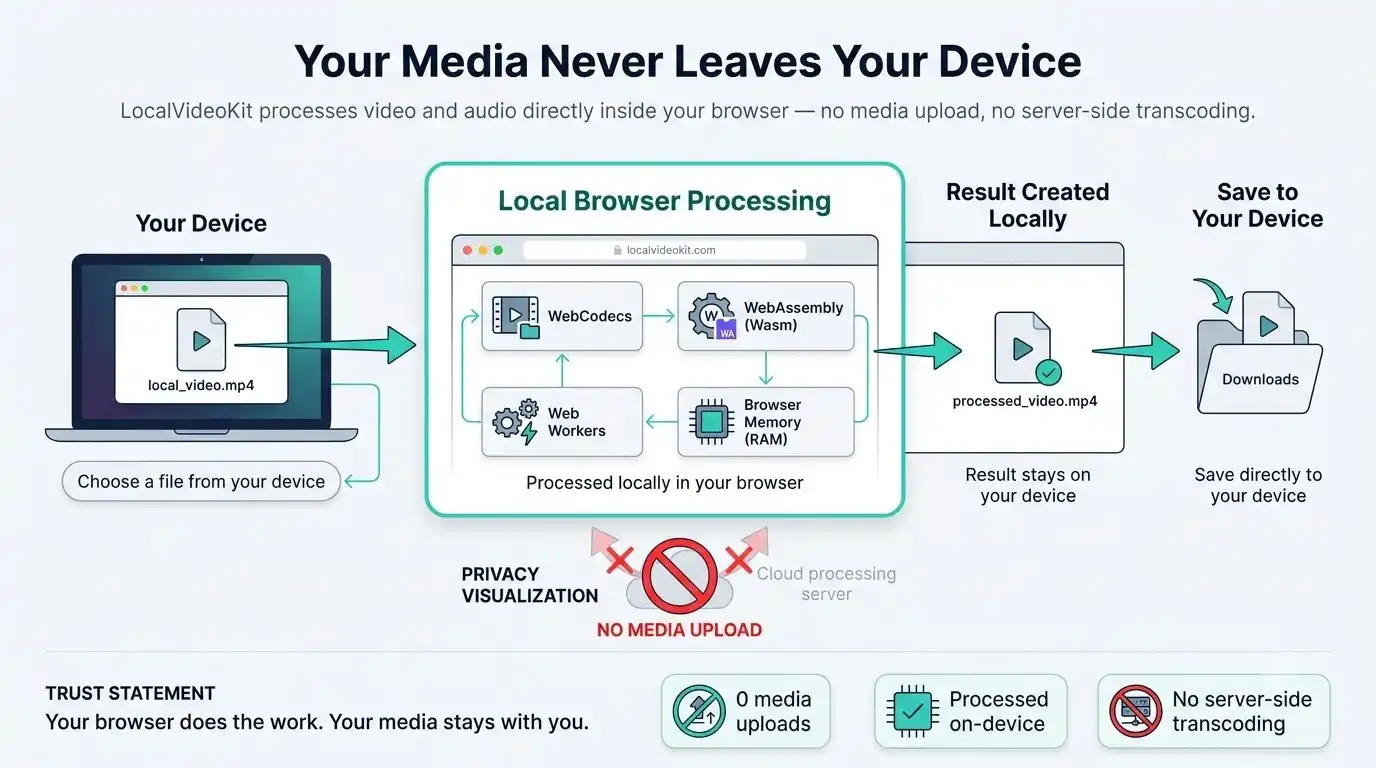
Your browser reads it from your disk using the standard File API. Nothing is sent anywhere.
WebCodecs taps your device's own hardware video encoder and decoder, WebAssembly runs fast code for reading and rewriting containers like MP4, MKV, and WebM, and Web Workers run the job on a background thread so the page stays responsive and several files can process at once — all held in your browser's memory while the job runs.
The finished file is built in your browser's memory, not on a server somewhere else.
The download comes straight from your browser's memory, not from a server.
Why Local Processing Is Faster
Check It Yourself: Watch the Network Traffic
Press F12 (or Cmd+Option+I on Mac) and open the Network tab.
Click the clear button so it's empty.
Select a file and run any tool on it.
You won't see any request carrying your file — nothing anywhere near the size of your video.
Check It Yourself: Go Offline
Open a tool page and let it fully load.
Turn off Wi-Fi or switch on airplane mode.
It still works, because nothing needs the internet once the tool is loaded.
Local Tools vs Cloud Converters
- Where your file goes — LocalVideoKit: stays on your device. Cloud converters: uploaded to a remote server.
- Copies of your video — LocalVideoKit: none outside your device. Cloud converters: stored under the provider's policy.
- Upload wait — LocalVideoKit: none. Cloud converters: depends on file size and connection.
- Works offline after loading — LocalVideoKit: yes. Cloud converters: no.
- Batch processing — LocalVideoKit: in parallel, on your device. Cloud converters: often limited or paid.
- Watermarks — LocalVideoKit: none. Cloud converters: common on free tiers.
What Local Processing Can't Do (Honest Limits)
- Very large files depend on your RAM: files up to a few hundred megabytes work well on most devices, but long 4K videos may be slow or fail on low-memory phones.
- Your device sets the speed: re-encoding jobs like compression run faster on newer hardware.
- Use an up-to-date browser: WebCodecs is supported in current versions of the major browsers, and older browsers may not support every tool.
Keep Your Video Private After You Share It
Try It Now
Frequently Asked Questions
Does LocalVideoKit upload my video?
No. Your video is read, processed, and saved by your browser on your device. It is never sent to our server or any third party.
Do you keep a copy of my files?
No. We never receive your files, so there is nothing to store. When you close the tab, the data in browser memory is cleared.
Does it work offline?
Yes. Once a tool page has loaded, you can disconnect from the internet and keep processing videos.
Can I process several videos at once?
Yes. Drop multiple files and they're processed in parallel using your device's processor cores.
Is it safe for confidential recordings?
Local processing removes the biggest risk of online tools: uploading your file to someone else's server. Your video never leaves your device while you work on it.
Is there a file size limit?
There's no fixed limit or paywall. The practical limit is your device's available memory.